My Cozy Note Jul 2025
A smart web-based note and to-do management app. Users can create, organize, and store rich-text notes directly in their own Google Drive. The app features an AI-powered writer that can generate notes from simple prompts and automatically create to-do lists based on existing notes, making productivity effortless and personalized.
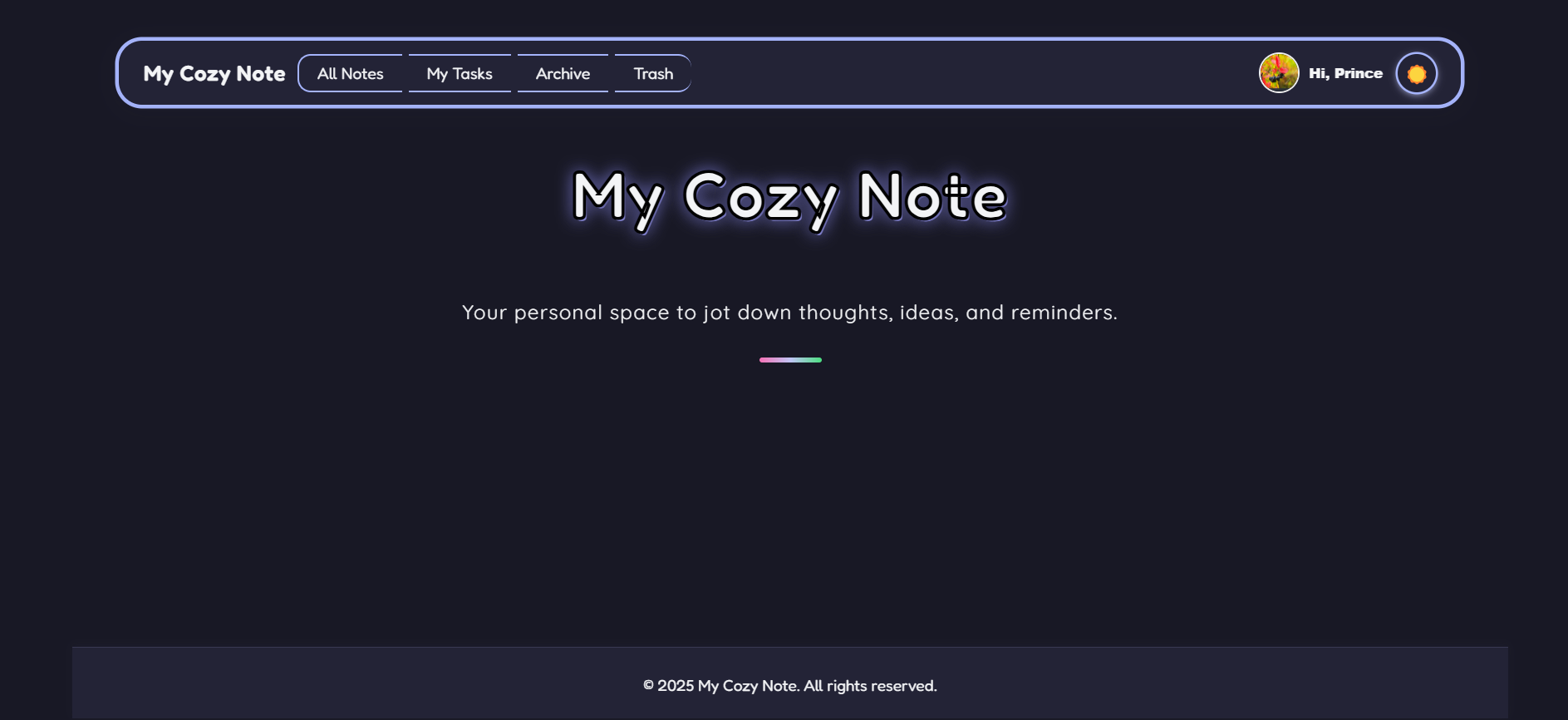
My Cozy Note — product preview
AI-assisted notes, one-click summaries and automatic to‑do generation — calm UI for focused work.
Features
- Rich-text & Markdown editor: Compose with formatting, code blocks, and inline images.
- AI Writer & Prompts: Generate notes from short prompts or expand ideas automatically.
- Automatic To‑Do / Action Extraction: Detect tasks and turn them into actionable checklists.
- Google Drive integration: Save notes to your Drive (user-controlled), making storage familiar and portable.
- Client-side encryption & privacy controls: Optional encryption and clear controls for what (if anything) is sent to external AI services.
- Tags, folders & pinning: Organize notes with tags, collections and quick-pin for important items.
- Reminders & basic scheduling: Set simple reminders for extracted tasks (local notifications / calendar hooks).
- Keyboard shortcuts & focus mode: Optimized for fast capture and distraction‑free writing.
- Responsive UI & Dark mode: Pleasant reading/writing experience across devices and themes.
- Privacy-first defaults: Analytics and cloud features are opt-in; data ownership stays with the user.
I am Totally Free!!
Yes, you heard it right. My Cozy Note is completely free to use for everyone.
How It Works
Users create an account and link their Google Drive to choose where notes are stored. Once connected, you can build workspaces to manage different projects or topics, and within each workspace, create groups or subgroups for structured organization. This flexible hierarchy makes it easy to manage ideas, documents, and tasks in one unified place.
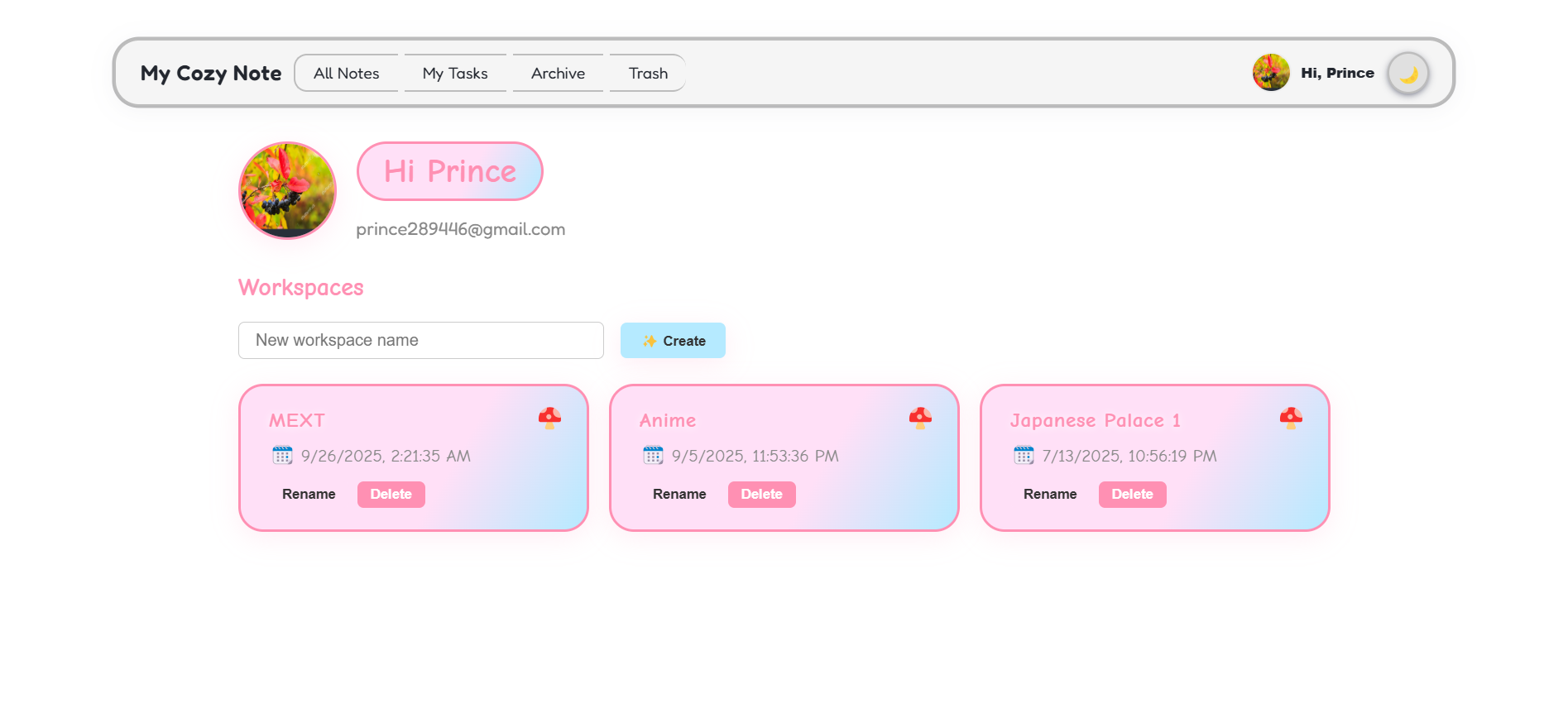
Workspace view — organize projects & collections
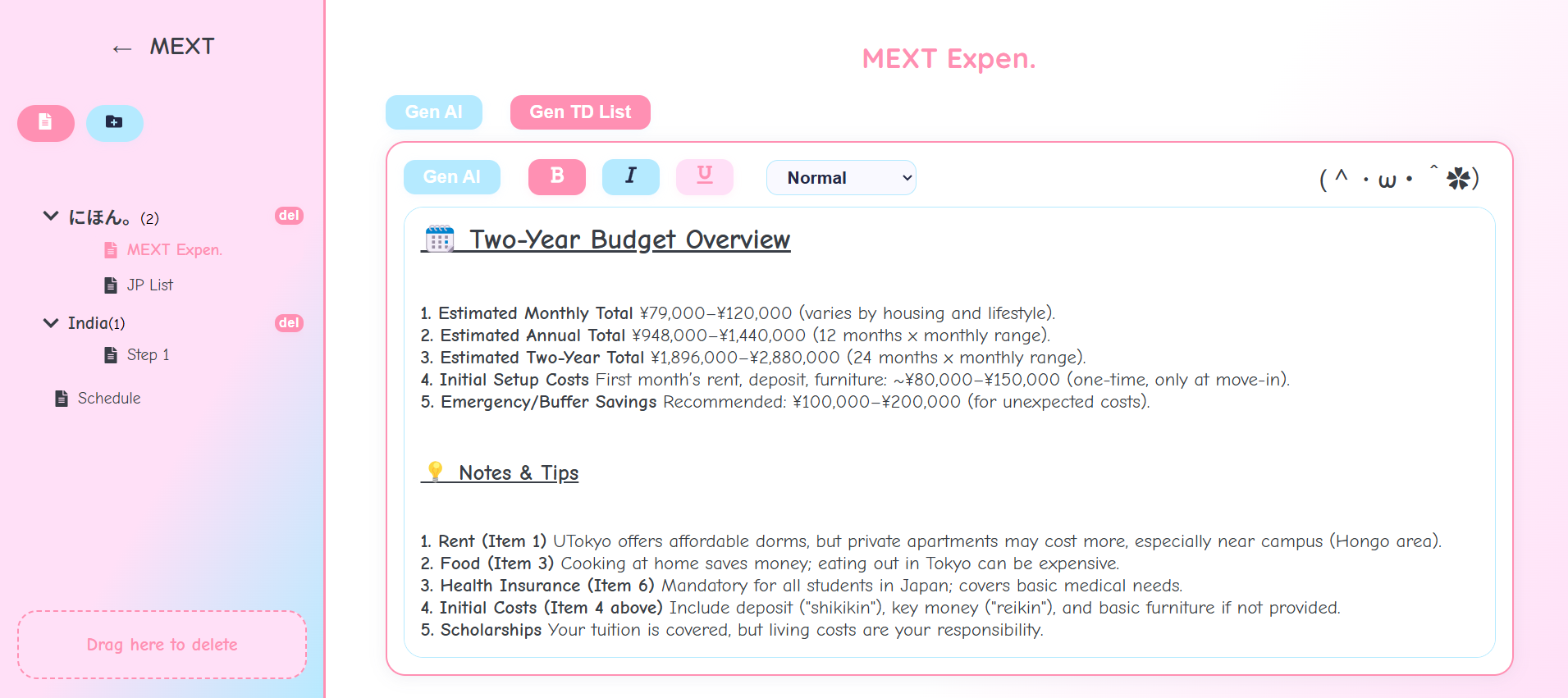
Note & task management — editor, summaries and to‑do extraction
How to Use My Cozy Note
Create Your Account & Link Google Drive
Start by signing up and linking your Google Drive. This ensures all your notes and tasks are stored securely in your own Drive, giving you full control of your data.
Create a Workspace
Once logged in, you’ll see the Workspaces section (as shown in the first image). Enter a new workspace name in the input box and click ✨ Create. Each workspace acts as a dedicated area for a project, topic, or category (e.g., MEXT, Anime, Japanese Palace). You can Rename or Delete workspaces anytime.
Manage Notes within Workspaces
Click on a workspace to open it (second image). Inside a workspace, you can create Groups or Subgroups (for example: にほん, India) to organize notes by category. Add new notes using the 📄 icon, and delete them easily with the del button. Drag notes to the “Drag here to delete” area for quick removal.
Edit and Write Notes
The editor supports rich-text formatting — you can bold, italicize, underline, and style your content just like in a document editor. Use the Gen AI button to generate notes automatically based on your prompt. Use Gen TD List to let AI create a to-do list based on your current note’s content.
Stay Organized
Your workspace structure keeps everything clean and easy to navigate: Workspaces → Groups/Subgroups → Notes. Each note can contain text, lists, or even automatically generated insights from AI.